Use the Bias Importer Tool I made!
OR
Manual Procedure:
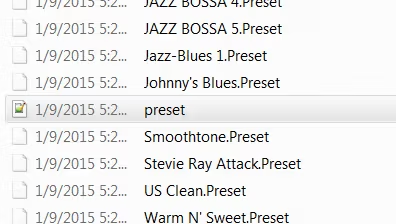
You will receive a “.Preset” file. You need to copy and paste this file in the factory1 bank folder.
Default Path for the “factory1” folder:
(On Windows) “C:\Users\User Name\ Documents\BIAS_FX\ Presets\factory1\”
(On Mac) “/documents/bias fx/presets/factory1/”
You need to modify the contents of the “preset.JSON” file inside the factory1 directory.
Inside of the factory1 folder, there is a “preset” JSON file.
For example to install the preset “JB DUAL LEAD.Preset” we add the following code at the end of the file.
“display_order” : must be the previous value + 1
“preset_uuid” : is a Random Unique Identifier. Just make something up! (it must have a certain length and the dashes must be placed in certain positions)
Installing a custom Skin for my Bias Amp Models (You do this only once)
Paste the .avif files that you receive in the “TemplateImages” folder.
Default Path for the TemplateImages folder:
• (on Windows) “C:\Program Files\Common Files\PositiveGrid\BIAS AMP
Plugins(64bit)\Resources\TemplateImages”
• (on Mac) “Library / Audio / Plugins / Components / BIAS.component /
Resources / TemplateImages” (Right
click Bias.component, show package content)
Note: If you want to use an amp that came with a custom skin inisde Bias FX, you need to create a
duplicate of this amp, without a custom skin.
Simply, inside Bias Amp open up the amp model you just got and click “Save As”,”OK”. That way
you will create the same model but without a fancy skin. The Amp will now be visible inside Bias FX.